Microsoft Entra ID (Azure AD) Setup Guide
This guide provides step-by-step instructions for setting up Microsoft Entra ID (formerly Azure AD) as an authentication provider in Jarvis Registry.
Prerequisites
- An Azure subscription with Entra ID (Azure AD) tenant
- Access to the Azure Portal with administrative privileges
- Jarvis Registry deployed and accessible
Step 1: Create App Registration in Azure Portal
- Navigate to Azure Portal
- Go to Azure Portal
- In the search box, type “Azure Entra” and click on it.
-
On the left menu, click on App registrations and then on New registration.
-
Create New Registration
- Click New registration
- Name:
Jarvis Registry(or your preferred name) - Supported account types:
- For single tenant: Accounts in this organizational directory only
- Redirect URI:
- Type: Web
- URI:
https://your-registry-domain/auth/oauth2/callback/entra - Replace
your-registry-domainwith your actual registry URL, usehttp://localhost:8888/auth/oauth2/callback/entrafor local deployment
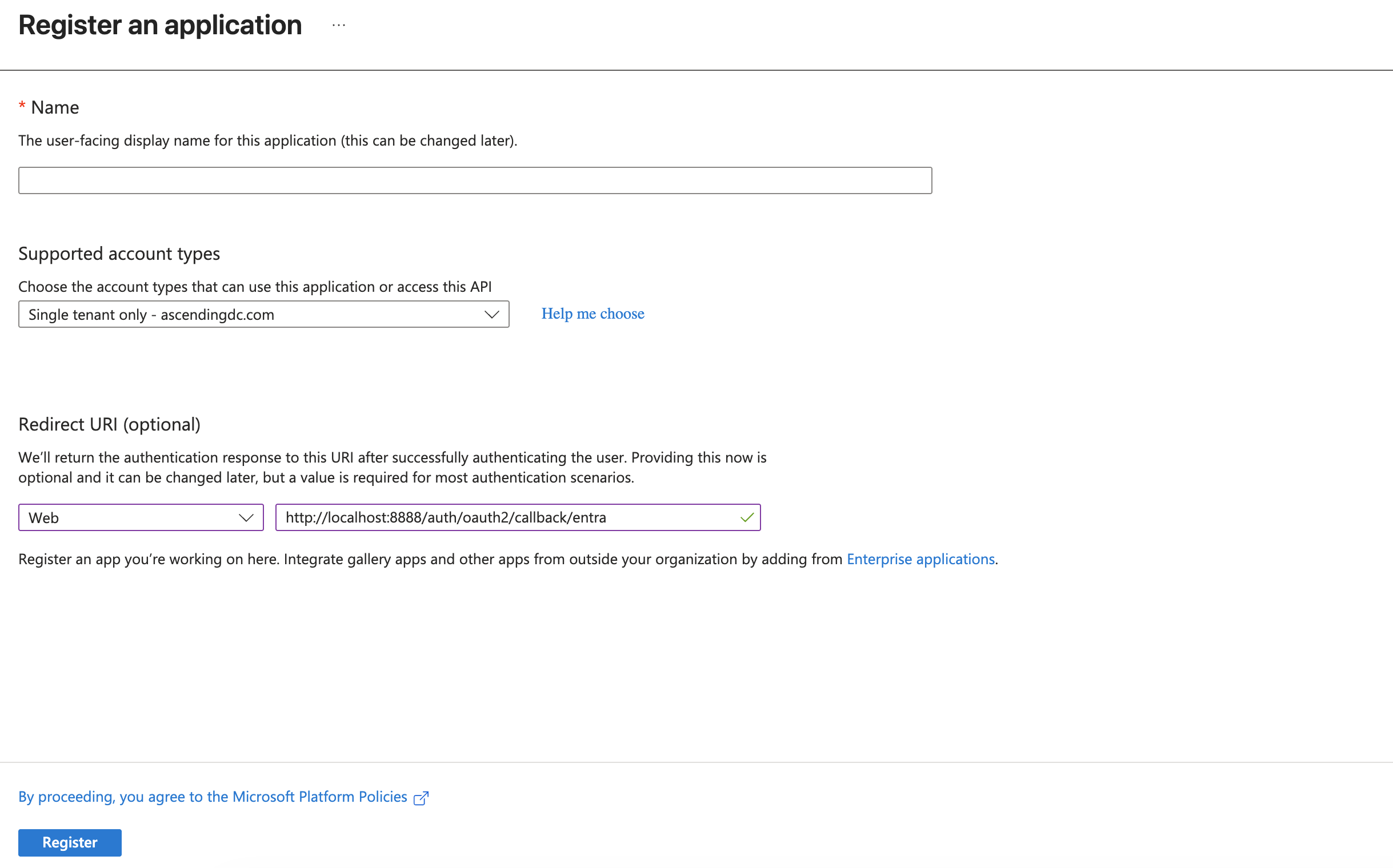
- Register the Application
- Click Register
- Note down the Application (client) ID and Directory (tenant) ID
Step 2: Configure Authentication
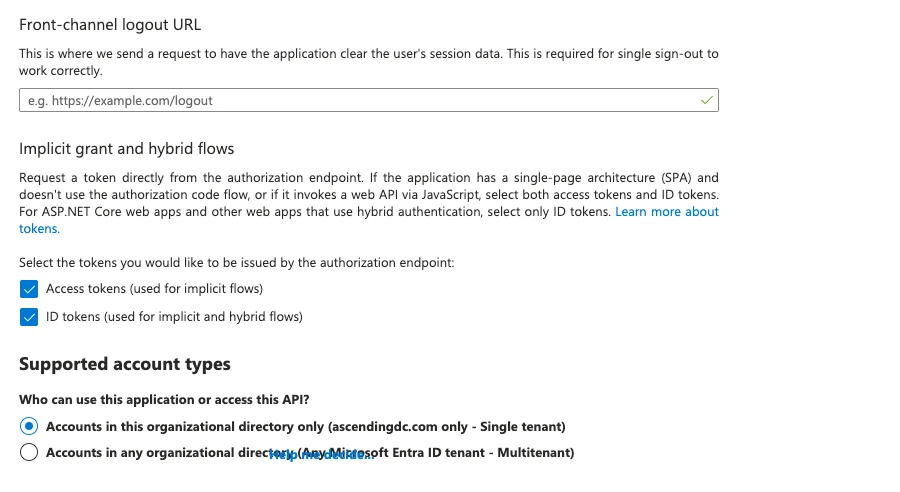
- Configure Platform Settings
- In your app registration, go to Authentication
- Under Platform configurations, ensure your redirect URI is listed
- Implicit grant: Enable ID tokens and Access tokens
Step 3: Create Client Secret
- Generate New Secret
- In your app registration, go to Certificates & secrets
- Click New client secret
- Description:
Jarvis Registry Secret - Expires: Choose appropriate expiration (recommended: 12-24 months)
-
Click Add
-
Copy the Secret Value
- Important: Copy the secret value immediately - it won't be shown again
- Store this securely
Step 4: Environment Configuration
Add the following environment variables to your Jarvis Registry deployment:
Required Variables
# Microsoft Entra ID Configuration
ENTRA_CLIENT_ID=your-application-client-id
ENTRA_CLIENT_SECRET=your-client-secret-value
ENTRA_TENANT_ID=your-tenant-id
Required identity claims and shared application
Chat and Registry must use the same Entra app registration (client_id) within each environment. Entra's sub is pairwise per application. Both products store it in users.openidId, so different client IDs would produce different subjects for the same person. Register both applications' callback URLs on that app registration.
Before deployment, configure Token configuration → Add optional claim → ID → xms_edov on the shared app registration. Ensure the ID token also contains the email claim (request the email scope and configure the optional email claim as needed). Inspect claims locally without pasting or logging the token. xms_edov must be the boolean true, not a string.
The auth server always verifies the ID token and requires iss, sub and oid. It reads the standard email claim, never substitutes a UPN, and trusts that email for linking or provisioning only when xms_edov is true. Without a trusted email, an existing stable-identity match can still sign in; a first-time user without such a match is refused. Group membership must also grant a nonempty scope before any user record is created.
Access tokens are used for Microsoft Graph group membership checks, not as identity tokens. A missing or invalid ID token fails login; there is no Graph identity fallback.
See Microsoft's optional claims reference and identity conflict resolution.
Optional display configuration
ENTRA_GRAPH_URL=https://graph.microsoft.com
ENTRA_USERNAME_CLAIM=preferred_username
ENTRA_NAME_CLAIM=name
The username is display information and is never used to match database users. Configure the four scope-group Object IDs described in the scope-group runbook; changing display claim mappings does not change authorization group bindings.
Deployment order
Configure the required optional claims and verify the shared client ID before deployment. Deploy the auth-server and Registry changes together. Remove the legacy email-source and token-selection settings from environment configuration at deployment time, not while the old code is still serving logins. Redis login or refresh records without user_id are rejected with invalid_grant and require a fresh login; do not clear all Redis state.
Existing OpenID users without an issuer are matched and repaired during login. The manual DEMO/PROD cleanup scripts are not a prerequisite for customer deployments. Shared user indexes are unchanged.
Step 5: Test the Setup
- Restart Services
-
Restart the authentication server and registry services
-
Test Authentication Flow
- Navigate to your registry login page
- Select "Microsoft Entra ID" as the authentication method
- Complete the Microsoft login process
- Verify successful authentication and user information retrieval
Step 6: Optional Configurations
Group Membership Access
To retrieve user group memberships from Azure AD, ensure the following permissions are granted:
- In Azure Portal → Your app registration → API permissions
- Add Microsoft Graph → Delegated permissions:
Group.Read.All- Read all groups- Or
Directory.Read.All- Read directory data (includes groups) - Click Grant admin consent (requires admin privileges)
Note: A failed group lookup produces empty scope groups. Both browser and device logins are refused when no scopes resolve, and no user is provisioned.
Custom Scopes
Modify the scopes configuration in oauth2_providers.yml to include additional Microsoft Graph permissions as needed.
Troubleshooting
Common Issues
- Invalid Redirect URI
- Ensure the redirect URI in Azure matches exactly with your registry callback URL
-
Check for trailing slashes and protocol (http vs https)
-
Insufficient Permissions
- Verify all required API permissions are granted with admin consent
-
Check that the user has appropriate permissions in Entra ID
-
Token Validation Failures
- Verify client ID, tenant ID, and client secret are correct
-
Check token audience and issuer configuration
-
Sovereign Cloud Issues
- For Azure Government or China clouds, set the appropriate
ENTRA_GRAPH_URL - Ensure app registration is in the correct cloud environment
-
Verify OAuth endpoints match your cloud environment
-
Untrusted email or identity conflict
- Confirm the ID token contains
emailand booleanxms_edov: truefor first-time sign-ins. - Confirm Chat and Registry use the same Entra client ID.
- Use the identity conflict runbook to diagnose refusals.
- Do not replace stored subject or issuer fields to force an account match.
Logs and Debugging
Enable debug logging to troubleshoot authentication issues:
Check authentication server logs for detailed error messages and token validation information.
Security Considerations
- Client Secrets: Rotate client secrets regularly and store them securely
- Token Validation: The implementation validates token signatures, expiration, and audience
- JWKS Caching: JWKS are cached for 1 hour to reduce API calls while maintaining security