MCP Server Gateway & Registry
Jarvis Registry's MCP Gateway is a single authenticated entry point for MCP-compatible clients to discover and invoke registered Model Context Protocol (MCP) servers. The MCP Registry catalogs those servers and their metadata; configured scopes and resource ACLs determine what each caller can access, while the gateway routes permitted requests and manages downstream credentials.
Jarvis Registry supports private deployment. Its identity, access-control, and observability features can support a customer's own compliance controls, but a private deployment does not itself confer SOC 2 or another certification. See the Deployment Guide, Security Control Design, and Observability for details.
What is an MCP Server?
An MCP server is any tool, service, or API that speaks the Model Context Protocol. It can be:
- Enterprise tools — Jira, Salesforce, GitHub, Slack, internal databases
- Custom services — your own Python/TypeScript/Go implementations
- Cloud APIs — AWS Lambda, Google Cloud Functions, Azure Functions
- Local services — running on your machine or private network
Once registered, an authenticated MCP-compatible client can discover and invoke a server that its user is permitted to access. How clients connect and invoke tools is covered in Registry Endpoint.
Registering an MCP Server
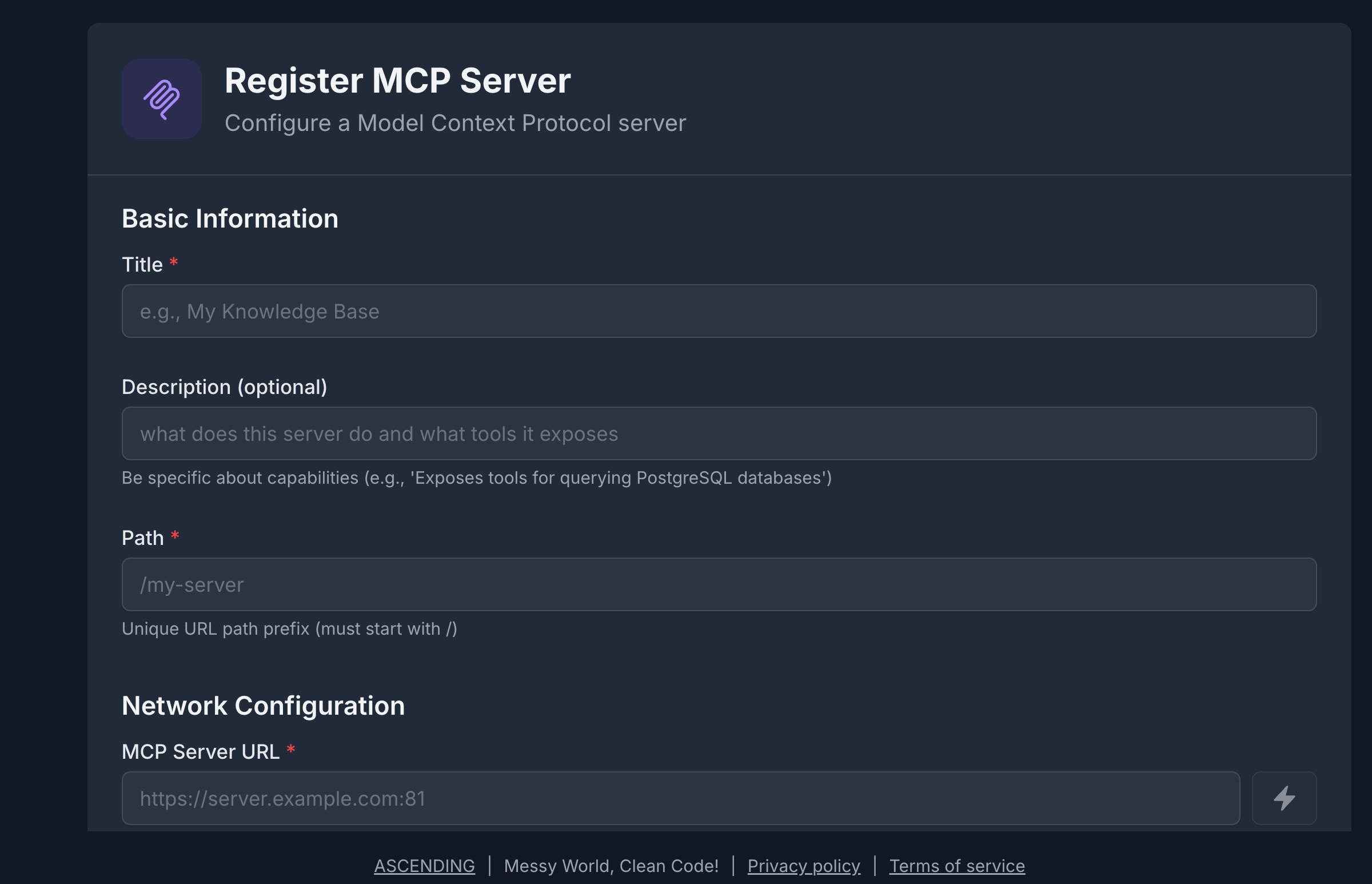
The registration form collects the essential information the registry needs to catalog, proxy, and secure your server:
- Name & Description — human-readable identifier and what the server does (used for semantic search)
- Transport — HTTPStreamable (recommended) or SSE
- MCP Server URL — where the server is reachable
- Authentication Type — No Auth, API Key, or OAuth 2.0
- Tags — searchable keywords (e.g.,
project-management,cloud,enterprise)
Tag generously
Add 3–5 descriptive tags per server. The registry's semantic search uses both tags and descriptions, so richer metadata means better discoverability for AI agents.
The MCP Server List
Once registered, your servers appear in the registry catalog. The list view shows all servers you have access to, with key metadata at a glance.
From the list you can:
- Search & filter — by name, tag, or transport type
- Open a server — view tools, metadata, and access settings
- Edit or delete — if you hold EDIT or OWNER permission
Resource Sharing & Access Control
Every MCP server defaults to private — visible only to its creator. Sharing is explicit and granular.
Permission Levels
| Permission | What It Allows |
|---|---|
| VIEW | Discover the server; read its tools and metadata |
| EDIT | Modify server definition, tools, and metadata |
| OWNER | Delete the server; grant or revoke access for others |
The creator is automatically granted OWNER. All other users must be explicitly granted access.
Role scopes authorize Registry operations; resource ACLs determine access to an individual server. Both checks must pass. Permission to reach a server does not automatically grant permission to every record or action in its connected business system. See Security Control Design for the enforcement model.
Sharing a Server
The sharing panel lets you grant access to individuals, groups, or your whole organization.
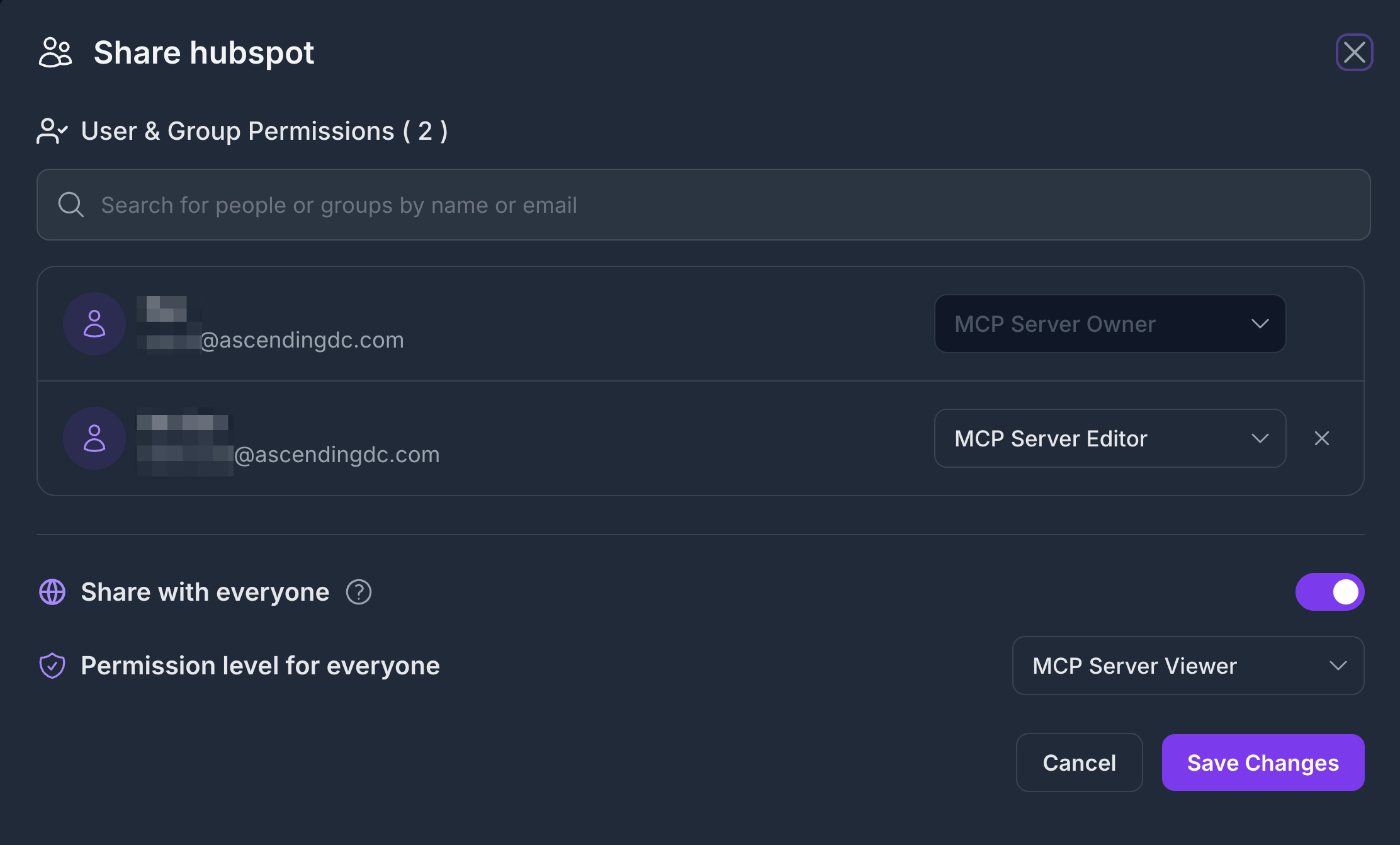
Sharing options:
- Individual user — grant VIEW or EDIT to a specific email
- Group — share with an IdP group (synced from Keycloak / Entra ID)
- Everyone — publish with VIEW to all authenticated users
For the complete permission enforcement model and how ACL interacts with RBAC, see Security Control Design
OAuth Token Management
Client sign-in to the Registry and authorization to a downstream service are separate steps. A user can be signed in to the Registry and still need to authorize access to a connected service. See IDP Integration and Registry Endpoint for client sign-in and connection setup.
When an MCP server requires authentication (OAuth 2.0), the registry manages the token lifecycle on behalf of the user — so AI copilots never need to handle credentials directly.
How It Works
AI Copilot
    │
    │  Requests Jira tool via Registry
    ▼
Jarvis Registry
    │  Checks RBAC scope + server ACL
    │  Retrieves or refreshes OAuth token
    ▼
Jira OAuth Server  ──────────►  Returns fresh access token
    │
    ▼
Registry forwards request to Jira MCP server
    │
    ▼
Result returned to AI Copilot
- The registry checks the user's scope and ACL permission for the server.
- It retrieves the stored OAuth credential from its encrypted store.
- If the access token is expired or near-expiry, it automatically calls the OAuth token endpoint using the stored refresh token.
- The fresh token is used for the downstream request — the copilot never sees raw credentials.
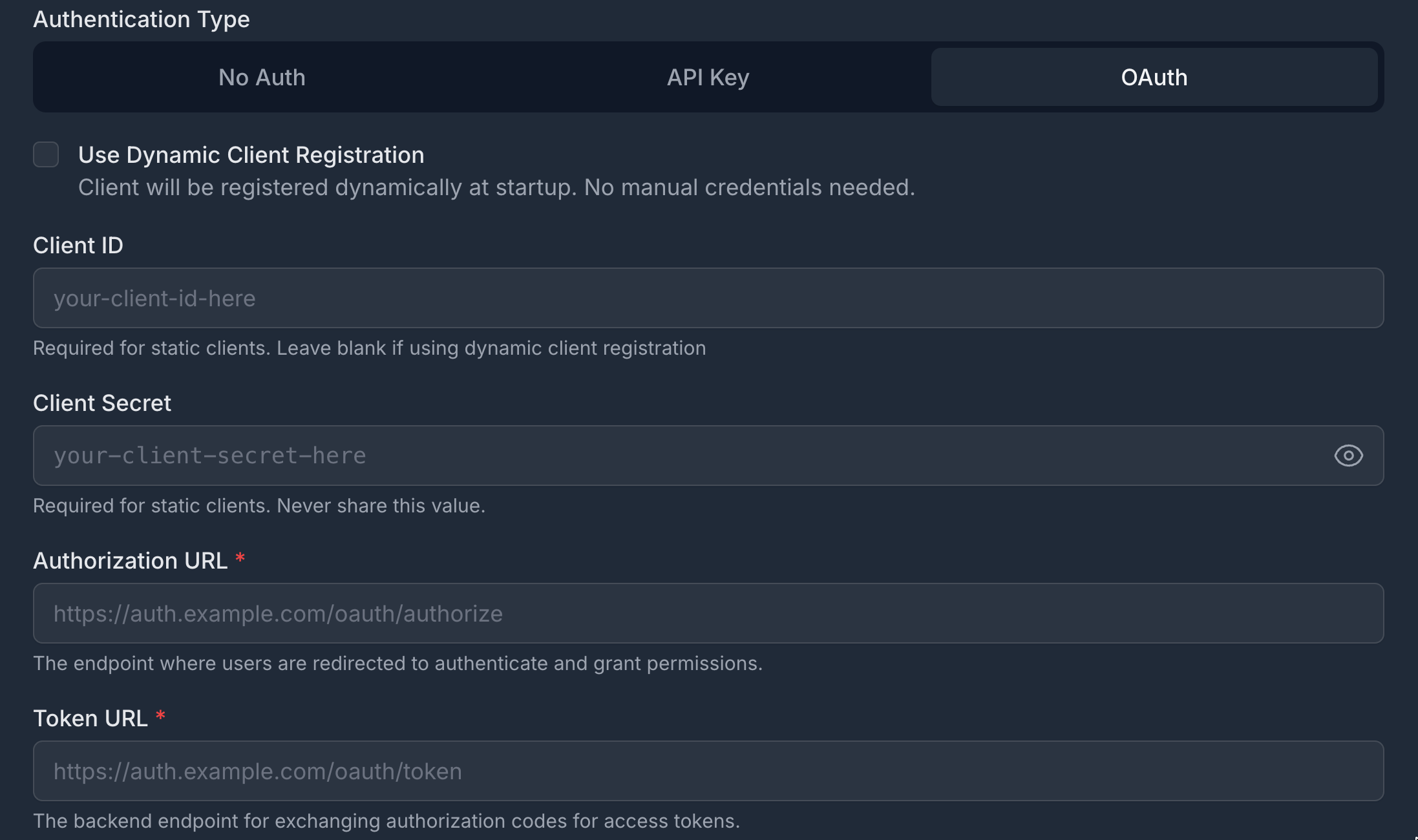
Setting Up OAuth for a Server
When registering (or editing) a server with OAuth, the registry securely captures the client credentials, token endpoint, and requested scopes — all stored encrypted at rest. The registry supports OAuth 2.0 Authorization Server Metadata discovery (RFC 8414) for automatic endpoint resolution, as well as Dynamic Client Registration (RFC 7591) for servers that issue client credentials on demand.
Per-User Credentials
When each user has their own OAuth identity for a backend service (e.g., personal Jira API tokens), the registry stores per-user credentials. When a copilot invokes a tool on behalf of that user, their credential is used instead of the server default.
How AI Copilots Connect
AI copilots discover and invoke MCP servers through the Registry Endpoint — a single secure URL that auto-exposes all servers the user is permitted to access. No per-server configuration is needed in the copilot.
See Registry Endpoint for the full integration guide, including how to wire Cursor, Claude Desktop, GitHub Copilot, and VS Code to the registry.
Next Steps
- Registry Endpoint — Connect any AI copilot to the gateway
- A2A Agent Registry — Register autonomous agents alongside MCP servers
- Test MCP access with two users — Compare allowed and restricted discovery and invocation
- Security Control Design — How authentication, RBAC, and ACL compose
Product page & demo
- See the MCP Gateway product page and demos on ASCENDING: MCP Gateway.